360° AUTOCROSS COACHING FOR WINDOWS

REVIEW THE RUN.
FIND THE TIME.

Turn one 360° recording into multiple replay angles. Compare your line through the cones and, when the camera can see the driver clearly, review how early you turn your head toward the next opening.

Windows 11 x64 Offline installer 1.44.19

You must be 18 or older to use AutoCross Coach 360.

DEVELOPMENT UPDATE

See where the runs diverged.

Current development through . The timing and recap improvements below are in the working build.

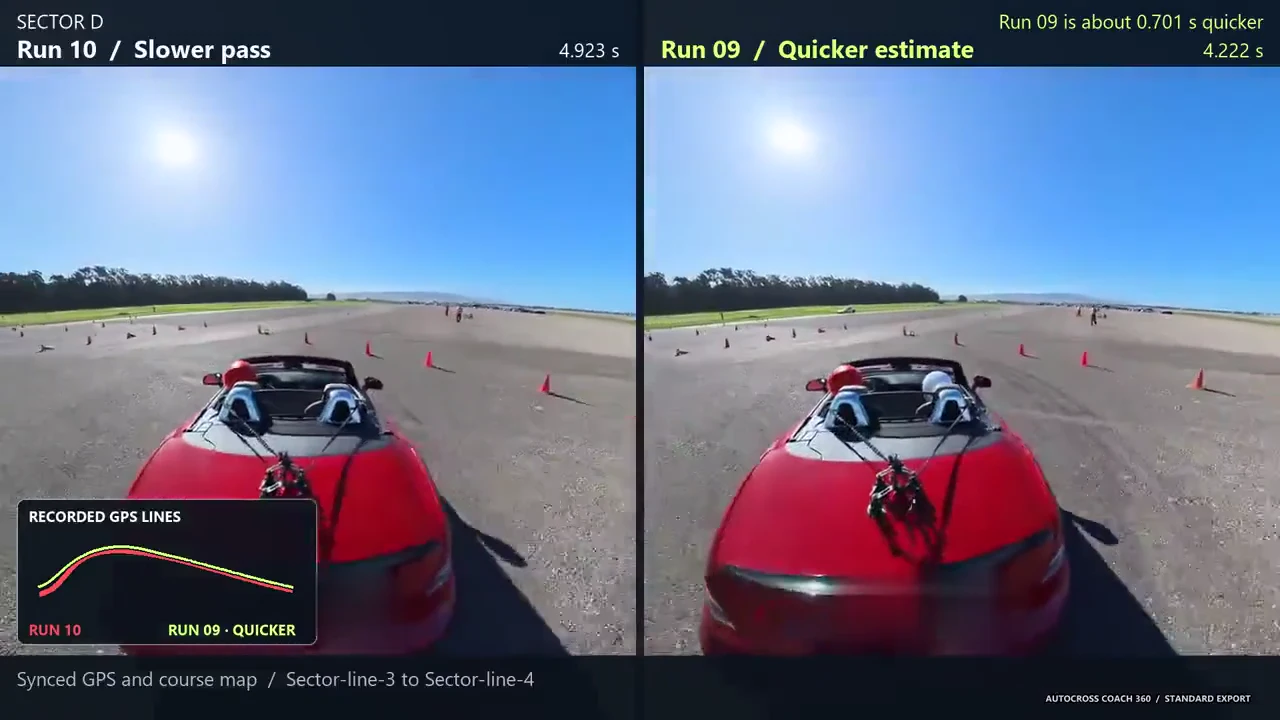
The replay compares Runs 10 and 9 through the same GPS sector.
Matched GPS sectorWorking build footage
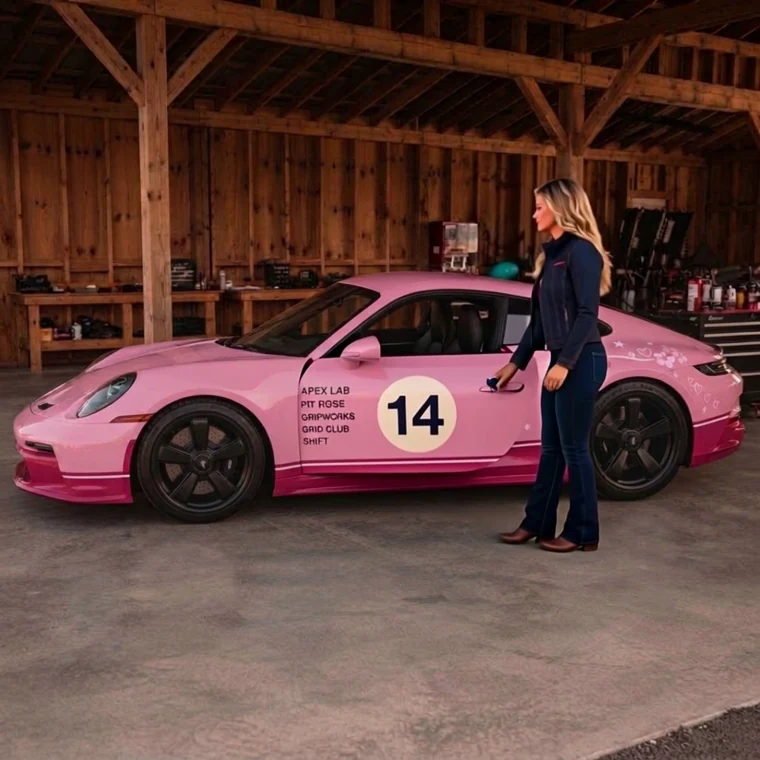
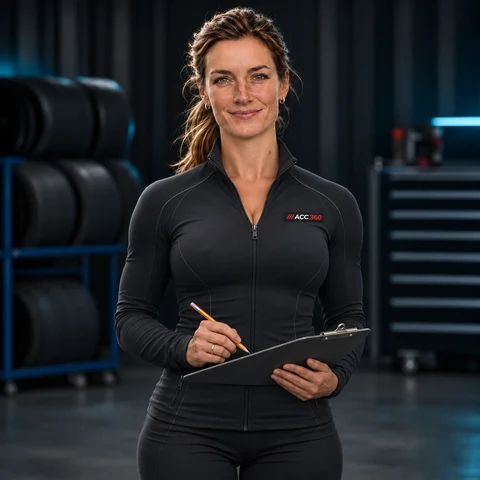
Emma in the paddock garage holding a clipboard.
EmmaRace-line coach
Meet the coaches

Compare the same gates

With synchronized GPS and a compatible gate map, AutoCross Coach 360 Studio compares runs between the same entry and exit. It can also divide a usable reference path into six shared sectors. A time advantage appears when it holds up to GPS and map uncertainty.
Line up video-only runs

Reframe compatible 360° footage to study the course from the angle you need. AutoCross Coach 360 Studio matches road views for side-by-side review, including supported Follow Cam footage. It checks repeated cone layouts and tracks visible rear-wheel crossings.

Carry timing into the debrief

See a live run clock and earlier results in the replay when timing is available. Event recaps and PDF reports bring together eligible matched sections, timing sources, cone notes, and drills.

Packaged offline installer 1.44.19Includes Run Organizer, narrated coaching, event recaps, PDF reports, and video-only section matching. The working build adds the gate timing, run history overlays, and expanded recap review shown here.

Windows requirements

360° REPLAY FROM AUTOCROSS COACH 360 STUDIO

See the run from the coach’s seat.

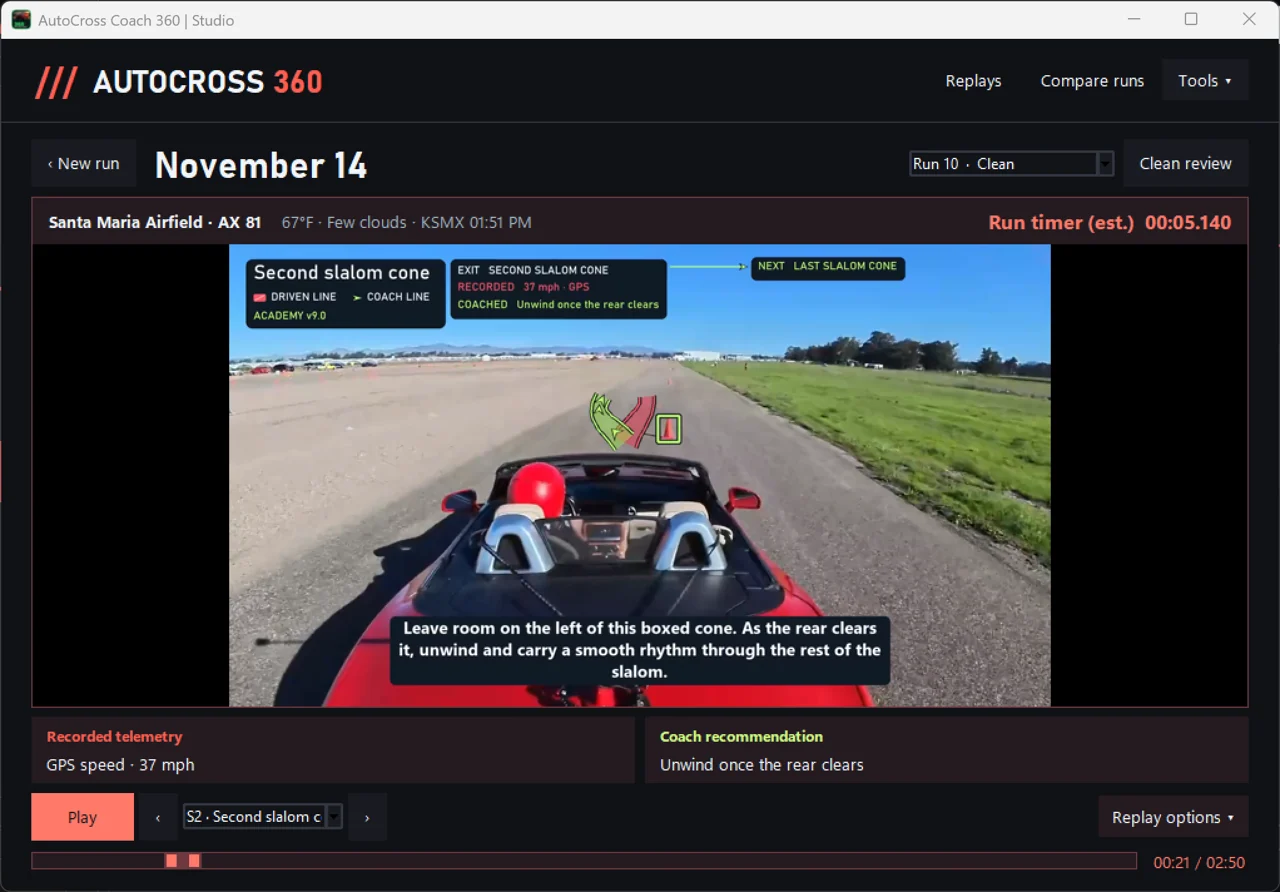
Watch real 360° Follow Cam footage from Santa Maria Airfield. Emma coaches over live telemetry, then the replay follows the cone Run 9 clipped. See head tracking in Run 8, a matched run comparison, and Emma’s chalkboard lesson and event recap.

November 14 event replaySanta Maria Airfield · Reframed 360° footage

Explore the demo

Narrated by Emma

Open full video

Preview all six coaches

One run, more angles

With compatible 360° footage, choose what to review after the run. Frame the course to study your line through a cone gate, then turn the replay toward the driver when the camera captured a clear cabin view.

See when you look ahead

Spotting the next opening early gives you time to plan your line and steering. With a supported setup and a clear view of your helmet, AutoCross Coach 360 Studio can estimate when your head turns relative to a gate. Use that timing as a cue for where your attention may be moving.

Meet your coaches.

Play a preview and find the coaching style that suits your experience and what you want to practice next.

6 coaches

Savannah

Beginner · Course walks

Builds confidence with course landmarks and one clear cue to take into the next run.

Lucas

Beginner · Cone placement

Works one cone at a time on slalom rhythm, clearance, and repeatable car placement.

Emma

Intermediate · Race lines

Links turns and shows how an earlier setup can open up the next gate.

Alex

Proficient · Telemetry

Compares matched sections using braking, minimum speed, and the return to power.

Sofía

Proficient · Car balance

Focuses on brake release, letting the car settle, and easing back onto throttle.

Hans

Advanced · Race engineering

Uses F1-inspired analysis to refine brake release and test whether a gain lasts past the exit.

AUTOCROSS COACH 360 STUDIO

From event folder to practice plan.

Import a 360° recording and choose which angle the coach sees. Review the course, your line, and your head movement when the driver is visible. Compatible flat video works too.

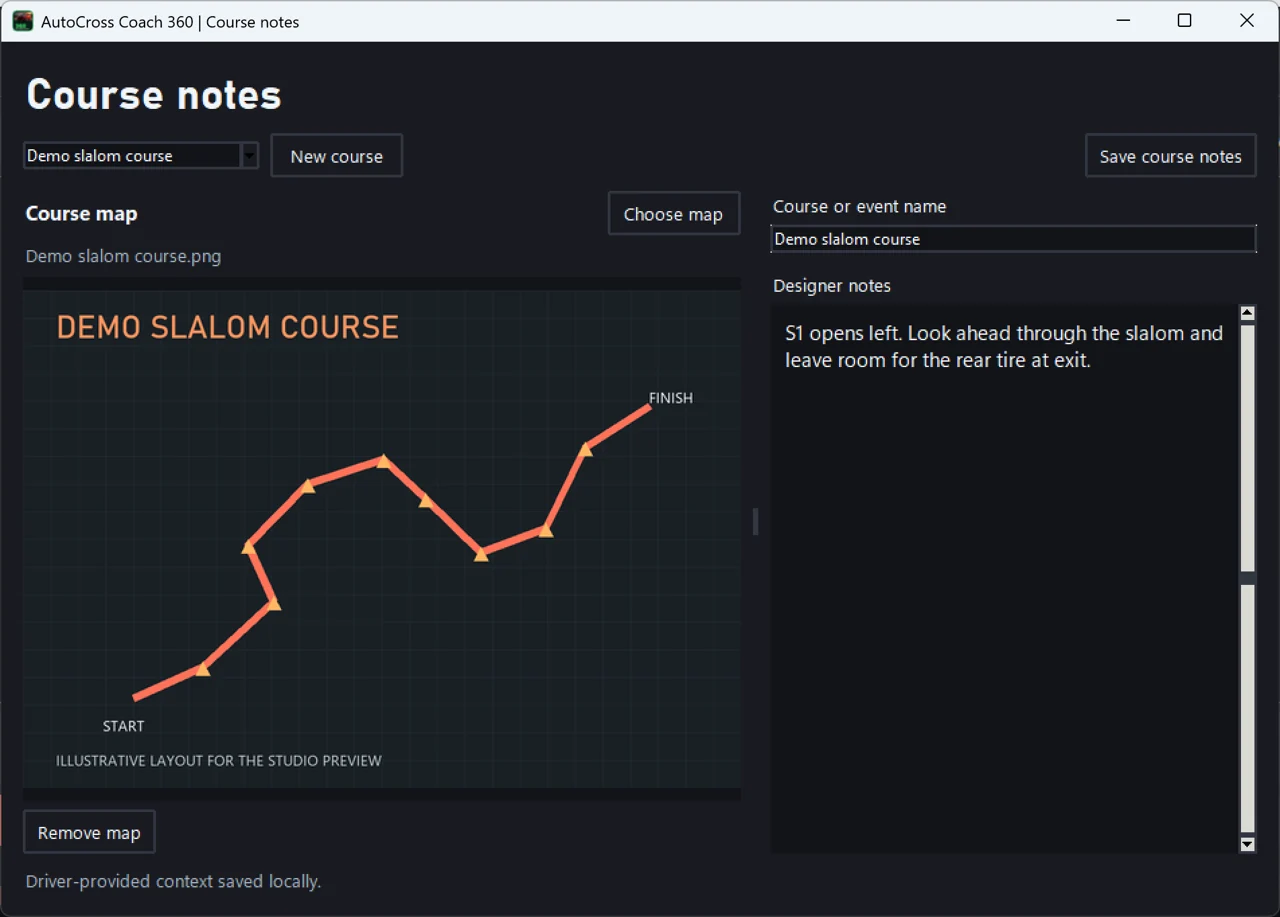
AutoCross Coach 360 Studio Course notes with a sample slalom map and designer notes.
Course notesSample layout and designer notes in AutoCross Coach 360 Studio

Organize and sync your runs

Drop a recording or mixed event folder into Run Organizer. Trim a run, aim the 360° view, and pair compatible RaceChrono GPS and OBD logs with the footage. Review a single replay or play the event playlist.

Choose your coach and HUD

Pick a coach and replay HUD, add on-camera coaching, and jump to marked moments. Where logged, speed, throttle, and RPM can appear alongside the coach’s recommended line and pedal cues.

Keep your own references

Add a course-map image and designer notes. Search Academy lessons and personal articles, record what to practice, and bring in useful reference sections from previously coached events.

Compare head turns and cone placement

With suitable footage and setup, use slow motion to review whether your head turns toward the exit before or after you reach the gate. Review that timing alongside the steering, your line, and any possible cone contact.

Save the replay and the report

Export a coached MP4 with captions and a PDF with marked coaching moments, replay timestamps, and the course and timing evidence available. Enable license plate blurring before exporting when you plan to share.

Offline review with optional training sharing

Review, render, and build your personal learning history offline. Today, opt-in contributions share reduced course-element examples. We plan to offer optional GPS contributions to help train our course recognition model.

CONVERTIBLES ONLY

Follow Cam helmet decal kit.

Review when you turn your head toward the next gate. The decals give AutoCross Coach 360 Studio a clearer reference for tracking your helmet through a run.

See whether you looked ahead

Head direction helps explain how you set up for the next change of direction. Compare a pass where you turn toward the exit early with one where your head stays pointed at the current cone until you’re close to it. That gives you a specific moment to review and a look-ahead cue to practice.

Give Follow Cam three reference points

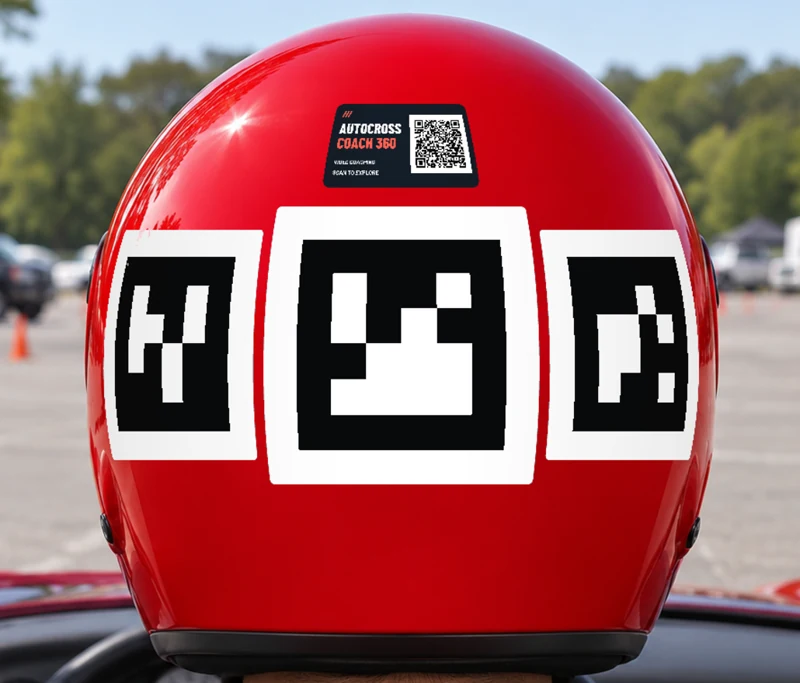
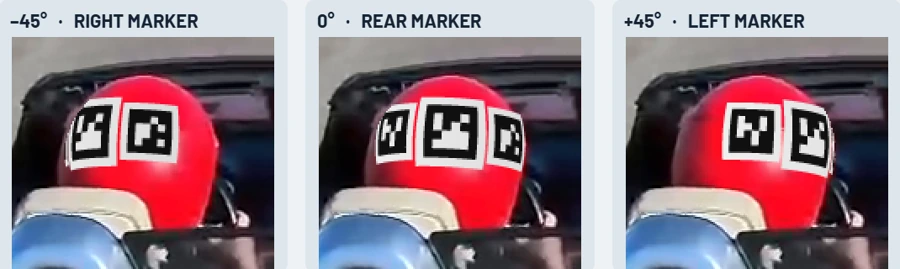
The rear marker gives the camera a reference when your head is straight. The side markers give it another reference as you turn. After a parked calibration, AutoCross Coach 360 Studio can estimate when your helmet started turning relative to a reviewed gate, provided enough clear frames are available. The replay reports helmet direction as a cue for where your attention may be headed.

$29.99USD per kit

Online ordering is pending.

  1. Place three markers. The kit uses one 85 mm rear marker and two 70 mm side markers. The convertible’s Follow Cam needs a clear view of the helmet.
  2. Calibrate while parked. In Garage → Helmet Setup, record a straight-ahead hold and slow turns to both sides. Keep the same camera framing on course.
  3. Review the turn in replay. Look for a cue such as a turn toward the exit before the gate. Clear markers and consistent camera framing help the app time it.

Follow your helmet manufacturer’s instructions and your event’s rules before applying decals.

Illustration of a red helmet with a large rear tracking decal and one smaller decal on each side.
Placement illustrationRear marker + two side markers
Three simulated Follow Cam views show the right, rear, and left helmet markers coming into view as the driver turns.
Simulated Follow Cam turnsRight · straight · left

Set up AutoCross Coach 360 Studio.

The Windows 11 x64 package includes the tools and models needed for offline analysis, narration, and export. The packaged workflow supports CPU processing.

Start with 1080p

Use a Windows 11 PC with a modern four-core processor, 16 GB RAM, and an SSD with about 30 GB free. Start with a forward-facing 1080p H.264 MP4 and keep the course and cones in view.

Make room for 4K or 8K

For high-resolution 360° footage and multi-run events, start with an eight-core processor, 32 GB RAM, and about 100 GB free on an SSD. Use a supported Insta360 INSV layout or a standard 2:1 spherical MP4.

Add telemetry when you have it

Include a compatible RaceChrono export with your recordings for GPS speed and course position. A compatible OBD-II adapter can add channels such as throttle and RPM when your car and recording setup provide them.

Get your first run ready
First-run steps
0 of 4 ready

MEMBERSHIP

Pick the depth of review you need.

Proposed monthly plans in USD. Paid enrollment is coming later.

A coach in your passenger seat.

For $19.99 a month, Bronze gives you a personalized AI debrief for every run you review. Once you’re parked, replay your footage for timestamped feedback on where to improve.

Live one-on-one video coaching can start at $250 an hour. A private track-day coach can cost $2,500 for a day.

Published rates from Kenny Garcia Racing and Jason Hart Racing.

Bronze

The essentials for a better debrief.

$19.99/ month

  • Drag-and-drop video review
  • Timestamped coaching cues
  • HUD and slow-motion playback

Silver

For drivers chasing consistency.

$29/ month

  • Everything in Bronze
  • RaceChrono event import and sync
  • Same-section comparison and splits
  • Next-run drills and practice log

Gold

A deeper workflow for regular competitors.

$39/ month

  • Everything in Silver
  • Course maps and designer notes
  • Personal Academy article library
  • Advanced 360° video export workflows
  • Watermark-free video and PDF exports with an active Gold membership file
Compare all three plans
Proposed membership features by tier
FeatureBronzeSilverGold
Drag-and-drop video reviewIncludedIncludedIncluded
Timestamped coaching cuesIncludedIncludedIncluded
HUD and slow-motion playbackIncludedIncludedIncluded
RaceChrono event import and sync—IncludedIncluded
Same-section comparison and splits—IncludedIncluded
Next-run drills and practice log—IncludedIncluded
Course maps and designer notes——Included
Personal Academy article library——Included
Advanced 360° video export——Included
Watermark-free video and PDF exports——Active Gold file required

AFFILIATE SHOP PREVIEW

Build your capture kit.

Start with your existing footage or put together a 360° and GPS setup for future events.

GPS LOGGER25 Hz

RaceBox Mini S

Log GPS through RaceChrono and match the exported session to your video in AutoCross Coach 360 Studio.

Shop RaceBox
360° CAMERA8K

Insta360 X6

Capture the whole course and choose your replay angle after the run. AutoCross Coach 360 Studio has been tested with X6 4K and 8K media.

Shop Insta360 X6
CAR MOUNT2 / 3

Insta360 Electric Car Mount

The Dual/Triple Electric Suction Cup Car Mount supports the X6. Check your event’s mounting and tether rules before use.

Shop the electric mount

Shop links open the manufacturers’ product pages. Referral tracking is inactive in this preview.

BEFORE YOUR FIRST RUN

The details.

Do I need a RaceBox or a 360 camera?

AutoCross Coach 360 Studio can review compatible flat or 360° video. GPS is optional and unlocks telemetry-backed analysis when a compatible RaceChrono export matches the run.

What does the app recognize on course?

With a clear view, AutoCross Coach 360 Studio looks for gates, slaloms, offsets, and other linked turns. It can mark possible cone contact for closer review. Similar cone layouts, limited visibility, and occlusion can leave a section unconfirmed.

What do the timing labels mean?

AutoCross Coach 360 Studio labels official results, reviewed results displayed in the source video, and estimates from GPS or video. Official times can include notes such as cone penalties. A side-by-side view can still help you study the line when the evidence is too uncertain to rank the runs.

How does training sharing work?

AutoCross Coach 360 Studio can analyze, play, and export runs offline. The current training contribution sends reduced course-element examples only when you opt in for an event. Optional GPS contributions are planned for model training.

Can I subscribe today?

Membership and prices are shown for planning. This preview does not collect payments or create a subscription.

Open video directly